> For the complete documentation index, see [llms.txt](https://docs.cloudcyte.com/llms.txt). Markdown versions of documentation pages are available by appending `.md` to page URLs; this page is available as [Markdown](https://docs.cloudcyte.com/getting-started/using-the-main-dashboards-and-grids.md).
# Using the Main Dashboards and Grids
The "Welcome" -> "CISO Dashboard" provides a maturity score based on the findings on the portal, activities on the machines and also their current state and finally summary of artifacts based on severity levels. The artifacts requiring investigation are classified into four categories: Malicious, Critical, High Risk, and Unknown. The artifacts can be analyzed more thoroughly through the "CISO Dashboard" page by clicking the artifact name or the hit count values. The detailed grid is opened accordingly. Through the dashboard, artifact summary section provides the summary of the all the artifacts on the portal.
The "Artifact Summary" section display current state of the system. When the artifacts are classified, the users can anaylze the findings with just one click. The navigated page will display all the artifacts collected on the devices.
The artifact grids are used to perform detailed analysis and investigation. On the top part of the page, hit counts based on severity are provided. On the grid, right-click actions provide the core functionalities. Both through the grid header and body, right-click actions are available. When clicked from the grid header, bulk operations can be performed:
* Rule Management: An artifact property can be added to a new or existing classification rule.
* List Management: An artifact property can be added to a list.
* Application Control Management: An artifact property can be added to a list.
* Aggregate: Aggregation actions can be performed.
* Actions: Through actions, the details of the artifact can be displayed. An artifact can be flagged as malicious or as trusted. When set as trusted, the risk score value is 0, and the malicious flag is set to false.
* Acknowledge: An artifact can be acknowledged for filtering in the grids.
* Search: The artifact property can be searched in Google and Virus Total.
* Enrichment Details: The information retrieved from threat intelligence is displayed in a pop-up.
* Host Analysis: The details of the host where the artifact is identified are displayed.
* Windows In-Depth Analysis: For Windows Autoruns, Processes, and Sysmon, an in-depth investigation of process behavior can be performed through a visual map.
* Remediation: Remediation jobs can be triggered.
* Remove: The artifact is removed from the grid when selected.
* Edit: The artifact properties can be edited.
On the top part of the grid, the main analysis and search functions are available as detailed below:
* Aggregate: The system provides two different aggregation analyses. In one type, the result is displayed as a pop-up. Through the pop-up, selected or all items can be added to classification rules and lists. The property is applied as a filter when clicked on the count values. Right-click actions are also available in the pop-up. In the second aggregation type, the results are displayed on a separate grid with full support of grid functionalities.
* "…": Bulk actions for the active artifact are displayed through this menu. Classification rules or updated list rules can be triggered to view the most up-to-date artifact classification state.
* Windows Remediation: For all the displayed items in the grid, remediation jobs can be triggered.
* Linux/macOS Remediation: For all the displayed items in the grid, remediation jobs can be triggered.
* Filter: The grid provides a detailed filtering function. A detailed filtering menu is opened on the right when the filter icon is clicked. After the filter is created, it can be saved by clicking the green icon on the top right part of the grid. Active filter can also be deleted. The saved filters can be selected from the "Select Filter" dropdown.
* Export: The items on the grid can be exported from this part of the menu.
The "Infrastructre Health" dashboard displays the current state of the infra health based on the findings on the devices. With clicking the dashboards, they will navigate user to the related artifacts. The dashboard is designed for users whole system detailed visualization. These dashboards specificly visualize the accesses on the system, like "Windows Network Access by Object Name", "Windows Network Access by Hostname", etc...
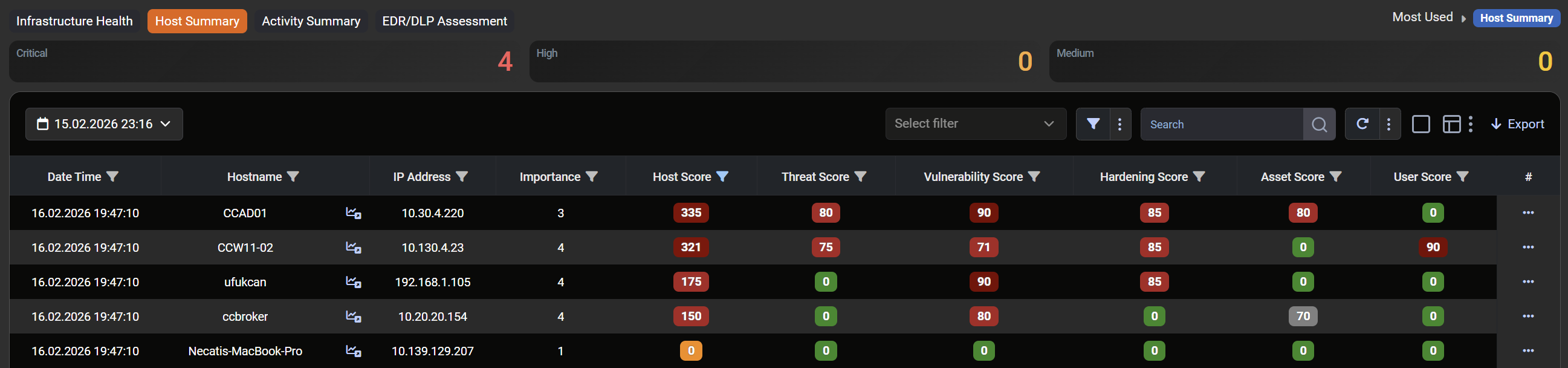
The "Host Summary" section displays a summary of the host analysis. This grid allows users to see the machine's health state with different types of scoring.
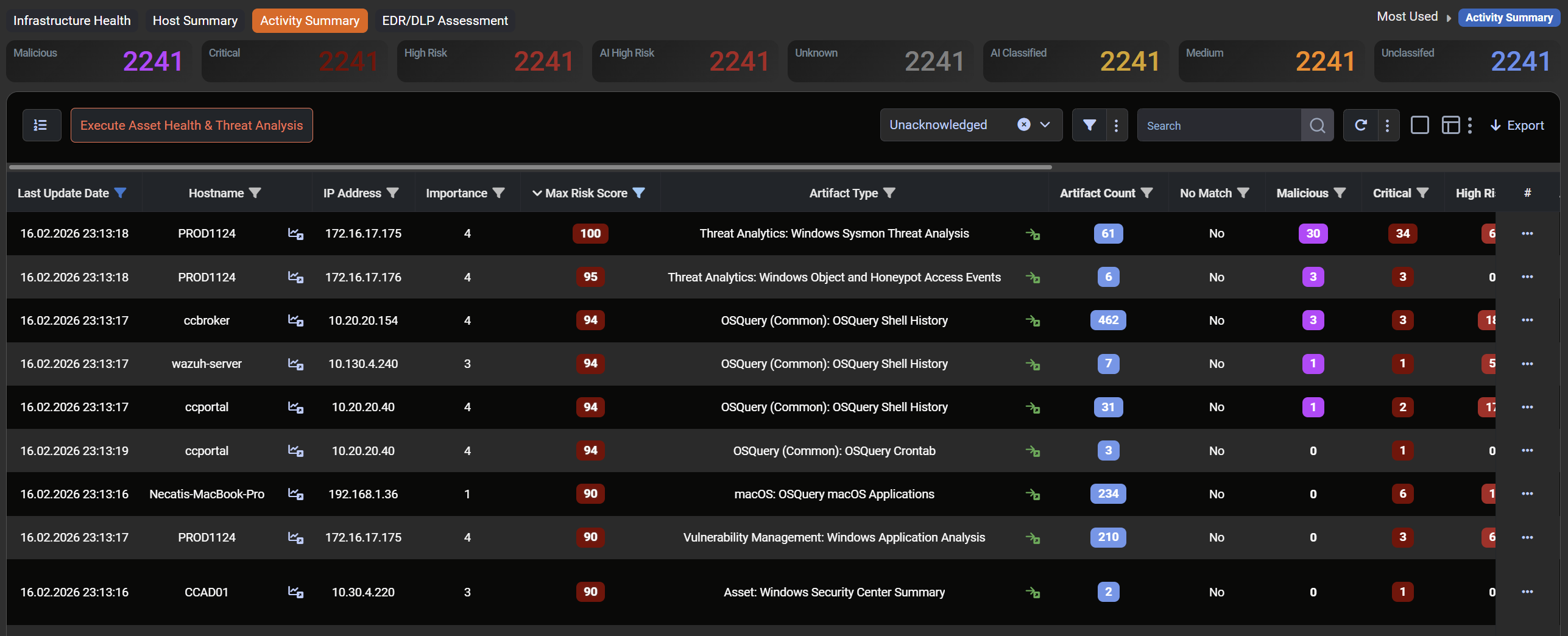
The "Activity Summary" focusing the organization's activty history with a summary of all threats. The users can analyze their situation, and with that users can see the activities and take action on the portal, such as white-listing, remediations, etc...
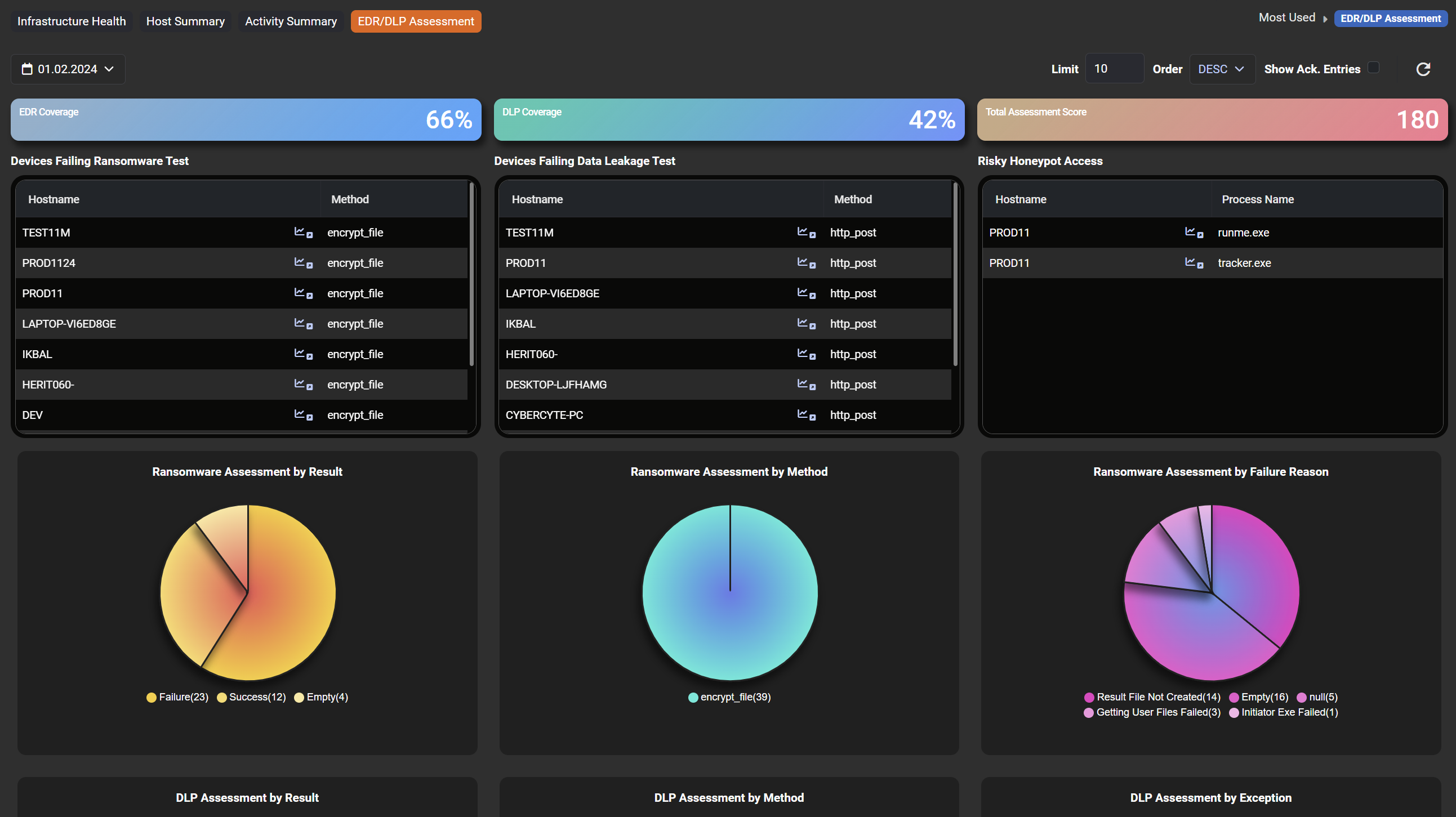
The EDR/DLP Assessment dashboards are designed for visualizing the EDR and DLP assessment coverage. On the users system, they can see percentage of the coverage and coverage details.