> For the complete documentation index, see [llms.txt](https://docs.cloudcyte.com/llms.txt). Markdown versions of documentation pages are available by appending `.md` to page URLs; this page is available as [Markdown](https://docs.cloudcyte.com/pre-requirements-and-initialization-of-the-platform/agent-installations/active-directory-windows-agent-installation.md).
# Active Directory Windows Agent Installation
## Option 1: Prepare the MSI Package
* Please navigate to "Settings & Reporting" -> "Deployment Settings" page.
* On that page, copy your tenant-specific URL parameter and then download the MSI (x64) installer.
**Note**: The URL parameter is tenant-specific. Do not share it outside your organization.
## Option 2: Prepare the EXE Package
* Please navigate to "Settings & Reporting" -> "Deployment Settings" page.
* On that page download the EXE agent.
**Note**: The agent is tenant-specific. Do not share it outside your organization
## Deploy Agent with Bat/PowerShell Script
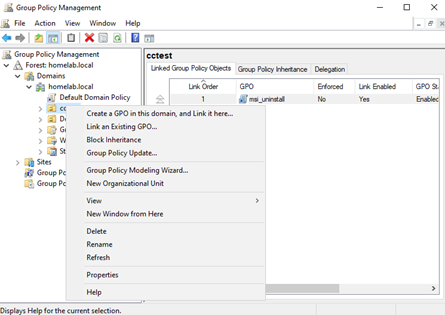
* Please navigate to "Group Policy Managment" and create a new GPO under the OU.
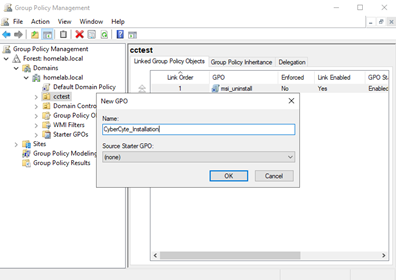
* The GPO name can be "CyberCyte\_Installation".
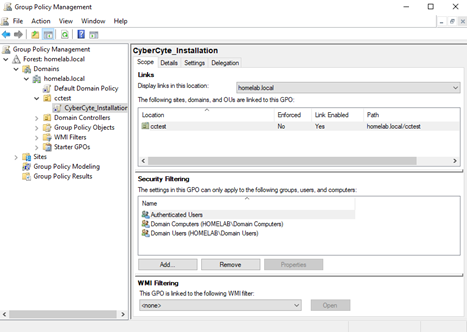
* Under the "Scope" -> "Security Filtering" add Domain Computers and Domain Users.
* Right-click on the GPO and select "Edit".
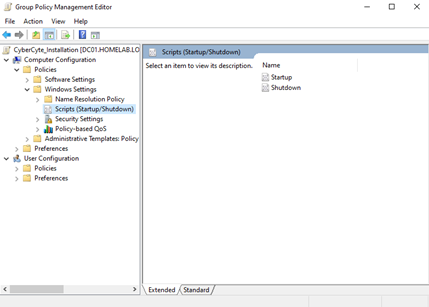
* The "Group Policy Managment Editor" will appear. Please navigate to "Computer Configuration" -> "Policies" -> "Windows Settings" -> "Scripts (Startup/Shutdown)".
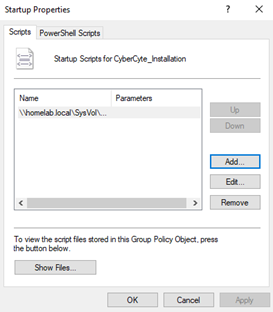
* Double-click on the "Startup" and add the script. The script can be .bat format or .ps1 format, it is optional. Please make sure the script location is under the default script path, e.g:“\\\dc01\sysvol\domain.local\scripts\install.bat”.
* Also, please upload CyberCyte package under the default script path, same as the startup script. The script and the package should be in the same directory for proper installation.
* Click "Apply" and exit.
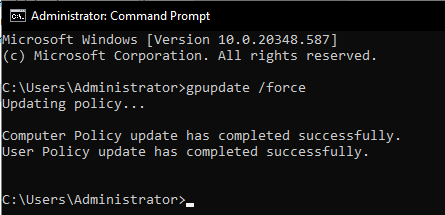
* Run "gpupdate /force" in CMD.
* The machines should get the policy after the next startup.
* For execution logs, please navigate to "C:\ProgramData\ ". The logs will appear after the startup script execution.
## Additional Configurations and Troubleshooting
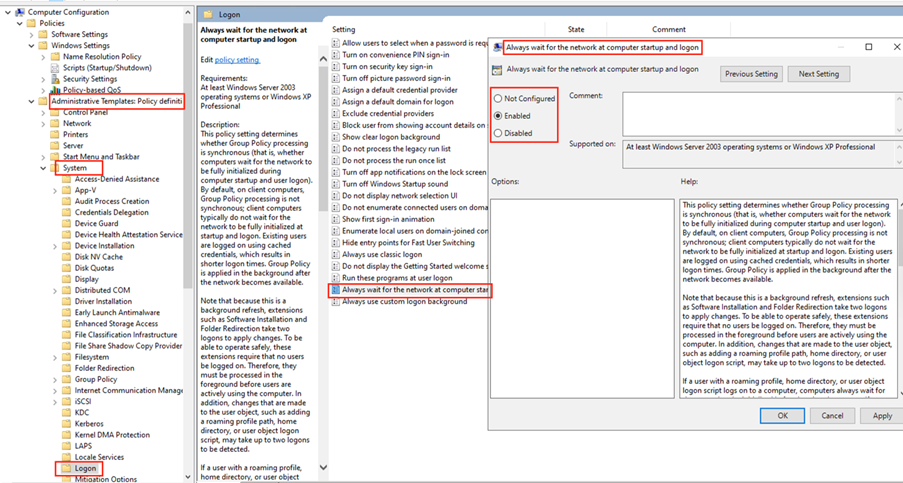
* Please make sure the startup scripts are always wait by default:
* Please navigate to “Computer Configuration” → “Policies” → “Administrative Templates” → “System” → “Logon”
* Set “Always wait for the network at computer startup and logon” = Enabled.
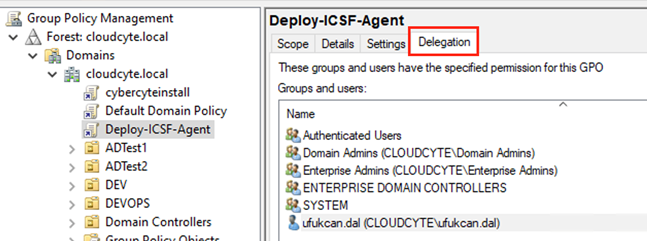
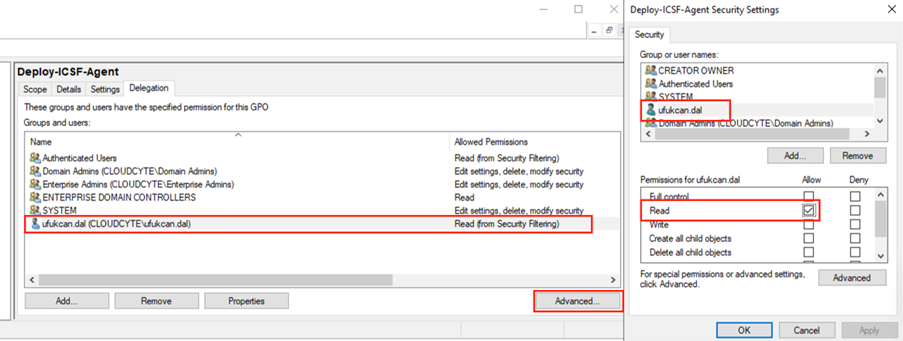
* We can edit the delegation if it is required Click on the GPO and navigate the Delegation section.
* Click the advanced button. Then select the user, computer or group. Give the read permission. Read permission is enough.
## Startup Scripts
* Bat script for exe formatted agent:
```
@echo off
setlocal enableextensions
set "SRC=\\\\"
set "LOG=C:\ProgramData\CyberCyte_exe_uninstall_install.log"
echo [%date% %time%] START >> "%LOG%"
if not exist "%SRC%" (
echo [%date% %time%] FILE NOT FOUND: %SRC% >> "%LOG%"
exit /b 1
)
start /wait "" "%SRC%" --silent --reinstallOnProblem --install --versioncheck=true >> "%LOG%" 2>&1
set "RC=%ERRORLEVEL%"
echo [%date% %time%] FINISH ExitCode=%RC% >> "%LOG%"
exit /b %RC%
```
* Bat script for msi formatted agent:
```
@echo off
setlocal enableextensions
set "LOG=C:\ProgramData\CyberCyte_msi_uninstall_install.txt"
set "MSILOG=C:\ProgramData\uninstall_install_log.txt"
set "MSI=\\\\"
echo [%date% %time%] START >> "%LOG%"
if not exist "%MSI%" (
echo [%date% %time%] MSI NOT FOUND: %MSI% >> "%LOG%"
exit /b 1619
)
:: Agent will uninstall if agent is already installed, then install it again...
start /wait msiexec.exe /i "%MSI%" ^
REINSTALL_ON_PROBLEM=true ^
URL="URL" ^
PROXY_URL= ^
PROXY_USERNAME= ^
PROXY_PASSWORD= ^
/qn /norestart /l*v "%MSILOG%"
echo [%date% %time%] FINISH ExitCode=%errorlevel% >> "%LOG%"
exit /b %errorlevel%
```
* Ps1 script for exe formatted agent:
```
$ErrorActionPreference = 'Stop'
$SRC = '\\\\'
$LOG = 'C:\ProgramData\CyberCyte_exe_uninstall_install.log'
function Log($t){
"$((Get-Date).ToString('yyyy-MM-dd HH:mm:ss')) $t" | Out-File -FilePath $LOG -Append -Encoding UTF8
}
Log 'Powershell Script Starting'
if (-not (Test-Path $SRC)) {
Log "NOT FOUND: $SRC"
exit 1619
}
try {
Log "EXEC: $SRC --silent --uninstall --install --versioncheck=false"
$p = Start-Process -FilePath $SRC -ArgumentList '--silent --uninstall --install --versioncheck=false' -Wait -PassThru -WindowStyle Hidden
$rc = $p.ExitCode
Log "FINISH ExitCode=$rc"
exit $rc
}
catch {
Log "EXCEPTION: $($_.Exception.Message)"
if ($_.Exception.InnerException) { Log "INNER: $($_.Exception.InnerException.Message)" }
exit 1
}
Log 'Powershell Script Finished'
```
* Ps1 script for msi formatted agent:
```
Start-Transcript -Path C:\ProgramData\uninstall_install_log.txt -Append
Write-Output "Powershell Script Starting: $(Get-Date)"
$msiPath = "\\\\"
$installArgs = "/i `"$msiPath`" /qn URL=`"URL`" PROXY_URL=`` PROXY_USERNAME=`` PROXY_PASSWORD=`` /norestart RUN_UNINSTALL_SCRIPT=true UNINSTALL_OPTION=uninstallall"
try {
$process = Start-Process -FilePath "msiexec.exe" -ArgumentList $installArgs -Wait -PassThru -WindowStyle Hidden
Write-Output "Exit Code: $($process.ExitCode)"
Write-Output "Installation finished: $(Get-Date)"
}
catch {
Write-Output "Error: $($_.Exception.Message)"
}
Write-Output "Powershell Script Finished: $(Get-Date)"
Stop-Transcript
```