> For the complete documentation index, see [llms.txt](https://docs.cloudcyte.com/llms.txt). Markdown versions of documentation pages are available by appending `.md` to page URLs; this page is available as [Markdown](https://docs.cloudcyte.com/getting-started/process-application-control-policy-management-guide.md).
# Process Application Control Policy Management Guide
**Overview**
\
To implement and manage Processes Control policies effectively, you must first activate the policy. Once activated, configure allowlisting to define which processes are permitted on specific computers or computer groups. Any process not explicitly allowlisted will be automatically blocked. Optionally, end-users can receive popup notifications when applications are blocked.
### **1. Activating the Policy**
Cybercyte agents operate based on assigned policies. To begin:**Navigation:** `Rules & Policies` → `Policy Management` → `Windows Threat Monitoring`
#### **1.1 Enable Reporting for Unknown Processes**
To identify running processes on agent-installed computers **before** implementing blocking:
* Select **"Report Unknown Processes Except Allow Listed"**
* This generates reports showing all non-allowlisted processes, enabling you to review and allowlist legitimate applications before enforcement.
#### **1.2 Enable Blocking for Unknown Processes**
To enforce restrictions:
* Select **"Terminate Process If Not Allow Listed"**
* This blocks all non-allowlisted processes on the computer.
#### **1.3 Enable User Notifications**
To notify end-users when applications are blocked:
* Select **"Notify User When Process Is Terminated"**
* A popup notification will display when a process is terminated due to policy violation.
#### **1.4 Monitoring Policy Enforcement and Blocked Processes**
After activating either Reporting or Blocking policies, you can monitor which processes are being reported or blocked:**Navigation:** `Asset Management` → `Application Control Management`This dashboard provides visibility into:
* Processes currently being **blocked** by active policies
* Processes being **reported** (in monitoring mode)
* Policy enforcement status across managed endpoints
Use this view to validate that your Application Control policies are functioning as intended and to identify any processes that may require allowlisting.
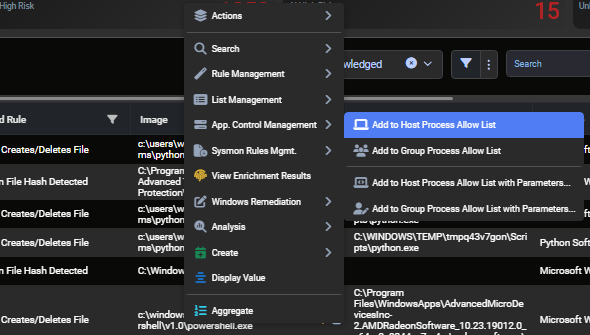
**Note:** To allowlist an application from this view, right-click the desired application, navigate to **App. Control Management**, and add it to the allowlist for the specific host or group.
### **2. Configuring Allowlisting**
To allowlist applications for end-user computers:**Navigation:** `Analysis & Investigation` → `Artifact Analysis` → `Windows Artefacts` → `Windows Process Analysis`
**Procedure:**
1. Locate the desired process
2. Right-click and select **"App. Control Management"**
3. Choose either:
* **"Add to Host Process Allow List"** — for individual computers
* **"Add to Group Process Allow List"** — for computer groups
### **3. Viewing and Managing Allowlisted Processes**
To review, modify, or remove allowlisted processes:**Navigation:** `Rules & Policies` → `Artifact Classification` → `Host-Group Based Permission List`
**Available Actions:**
* Click the **three-dot menu (⋯)** next to any process to:
* Edit the entry
* Remove from allowlist
* Delete the rule
### **4. Listing Application Allowlist Rules per Computer**
To view or modify allowlist rules applied to a specific agent-installed computer:**Navigation:** `Most Used` → `Asset Management`
**Procedure:**
Locate the target computer
Click the **"View Allow Listed Processes"** icon next to the hostname
A new tab opens displaying all allowlisted processes for that computer, where you can:
* View current rules
* Modify entries
* Remove processes
* Update configurations
### **Quick Reference: Navigation Paths**
| Task | Navigation Path |
| ----------------------- | ------------------------------------------------------------------------------------------- |
| Activate Policy | Rules & Policies → Policy Management → Windows Threat Monitoring |
| Allowlist Processes | Analysis & Investigation → Artifact Analysis → Windows Artefacts → Windows Process Analysis |
| Manage Allowlists | Rules & Policies → Artifact Classification → Host-Group Based Permission List |
| Computer-Specific Rules | Most Used → Asset Management → \[Computer] → View Allow Listed Processes |
| Blocked Processes | Most Used -> Asset Management -> Application Control Management |